Taking a screenshot of a public web page is simple. Capturing one from a page that sits behind a login wall is a different story — at least it was, until now.
PeekShot’s Cookie Templates feature lets you export your active browser session cookies once, save them securely in your dashboard, and then automatically authenticate every screenshot request from that point forward — no manual login, no repeated workarounds. This guide uses Instagram as a real‑world example, but the exact same workflow applies to any login‑protected site: LinkedIn, Twitter/X, internal dashboards, SaaS apps, and more.
1. Why Login-Protected Pages Break Screenshot Tools
Most screenshot APIs — including PeekShot in a standard request — open a real browser, navigate to your URL, and capture what they see. When the destination requires a login, the browser lands on the sign-in page or a modal overlay instead of the content you want.
Here is what you get when you try to screenshot an Instagram post without any authentication:
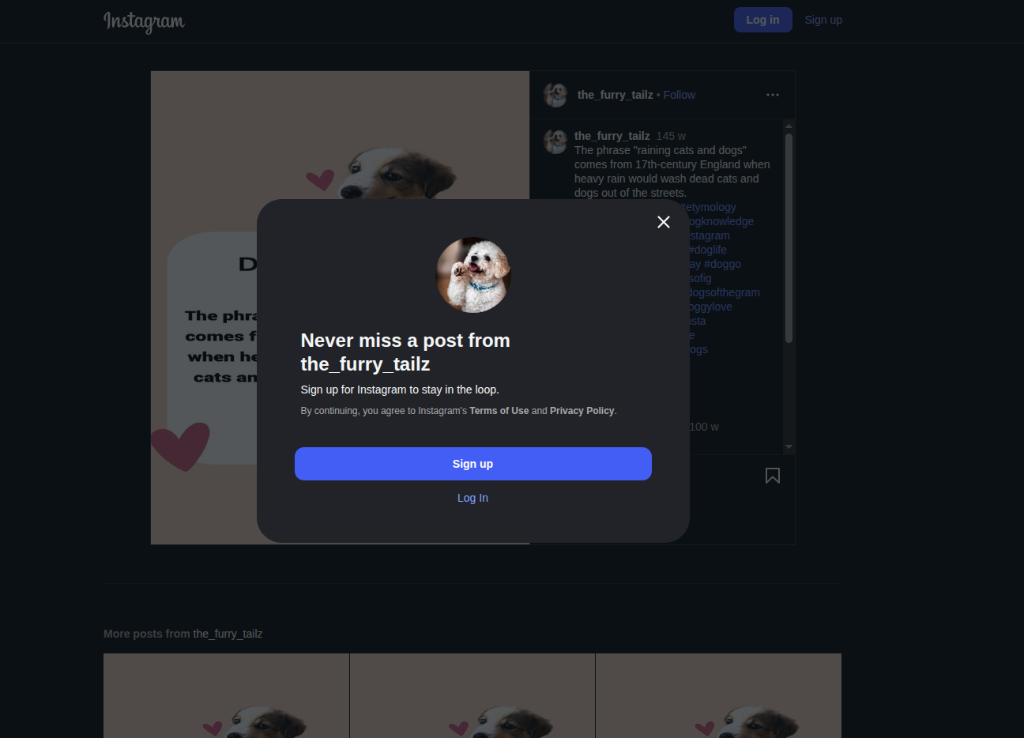
That sign-up modal is exactly what automated tools receive when they visit Instagram without a valid session. The fix is to give PeekShot your active session cookies so the browser opens the page as if you were already logged in.
2. How Cookie Templates Work in PeekShot
When you log into any website in your browser, the site sets session cookies — small pieces of data that prove your identity on subsequent requests. PeekShot’s Cookie Templates feature lets you:
- Export those cookies from your browser (one‑time setup, takes ~2 minutes)
- Save them in PeekShot as a named, encrypted Cookie Template
- Reference that template in any screenshot request — dashboard or API
Every request that uses a Cookie Template opens the target page in a browser that is already “logged in” as you, bypassing login walls automatically.
Who benefits from this?
- Developers automating social media monitoring, competitive research, or content archiving pipelines
- Agencies capturing client portal snapshots for reports
- QA teams running authenticated end-to-end visual regression tests
- No-code users who need a one-click solution from the dashboard
Step 1 — Export Your Session Cookies from the Browser
To capture a protected page, you first need to export the session cookies from your own browser where you are already logged in.
Use a Chrome extension that can export cookies in JSON format. For this guide, we use EditThisCookie (V3).
- Install EditThisCookie (V3) from the Chrome Web Store.
- Open instagram.com (or the site you want to capture) and log in.
- Click the EditThisCookie (V3) icon in your toolbar.
- Click Export — this copies your session cookies as a JSON array to your clipboard.
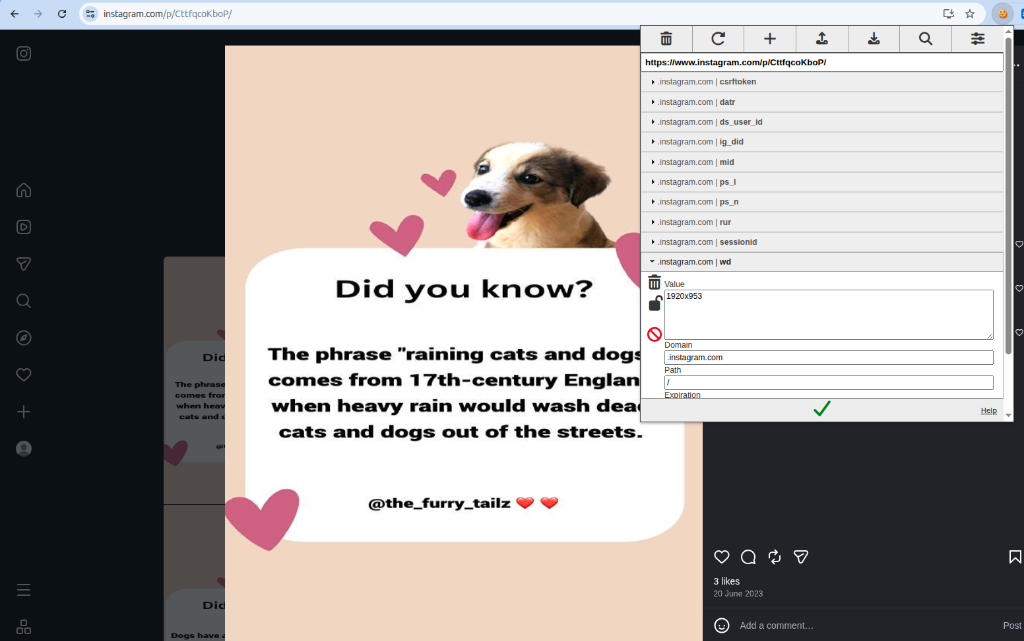
ℹ️ Note: The exported JSON array contains everything PeekShot needs to authenticate the request, including your
sessionidandcsrftoken.
Step 2 — Create a Cookie Template in PeekShot
With your cookies copied to the clipboard, head to your PeekShot Dashboard.
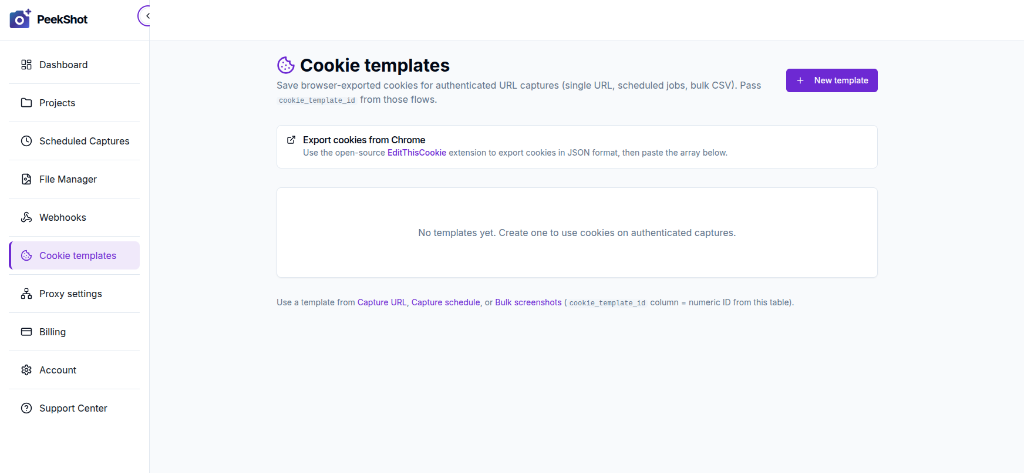
- In the left sidebar, click Cookie Templates
- Click + New template in the top-right corner
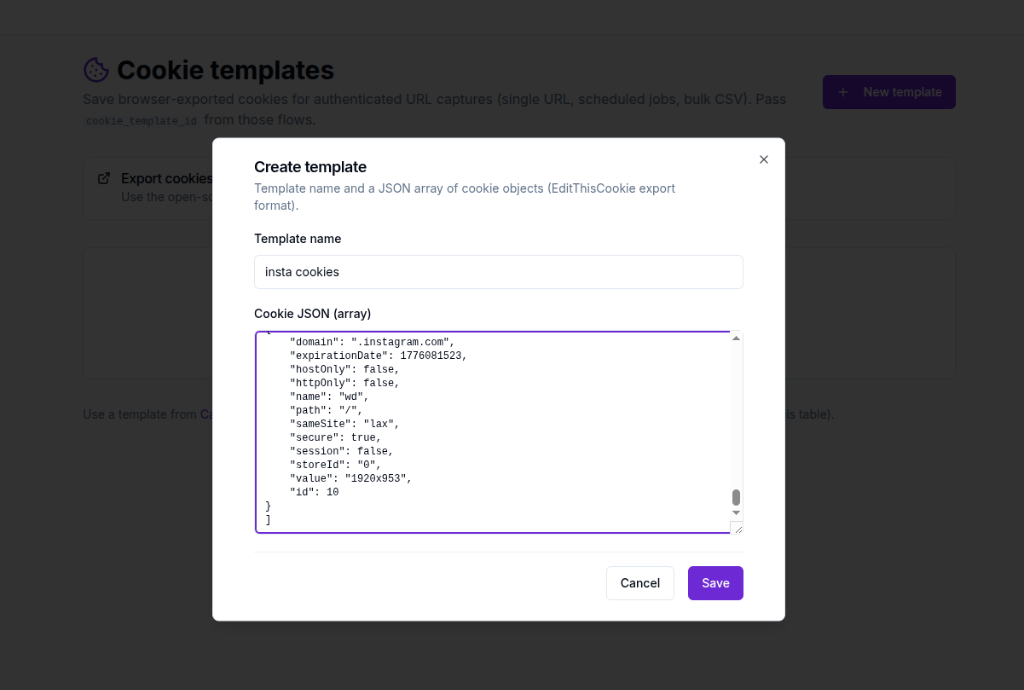
- In the Create template modal that appears:
- Enter a descriptive Template name (e.g.
insta cookiesorInstagram Personal) - Paste your exported cookie JSON array into the Cookie JSON (array) field
- Enter a descriptive Template name (e.g.
- Click Save
Once saved, your template appears in the Cookie Templates list with a numeric ID. That ID is what you pass as cookie_template_id in API requests or select from a dropdown in the dashboard.
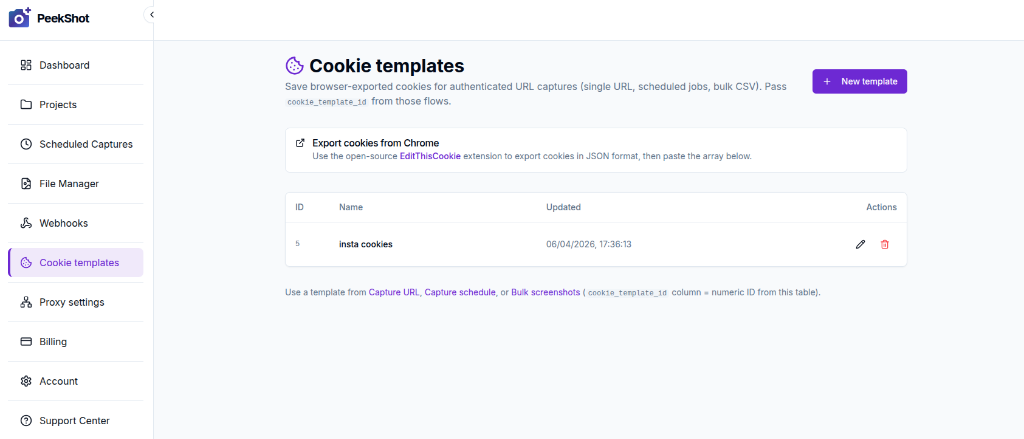
💡 Tip: You can create multiple Cookie Templates — one per site or per account. For example:
Instagram Work,LinkedIn Personal,Client Portal - Acme Corp.
Step 3 — Capture the Authenticated Screenshot
From the Dashboard (No Code)
- Go to Projects → Proceed → Capture URL Screenshot.
- Enter the URL you want to capture, e.g.
https://www.instagram.com/p/CttfqcoKboP/. - Open Advanced Options and select your Cookie Template from the Cookie Template dropdown.
- Set a delay of 3,000–5,000 ms.
- Click Capture Screenshot.
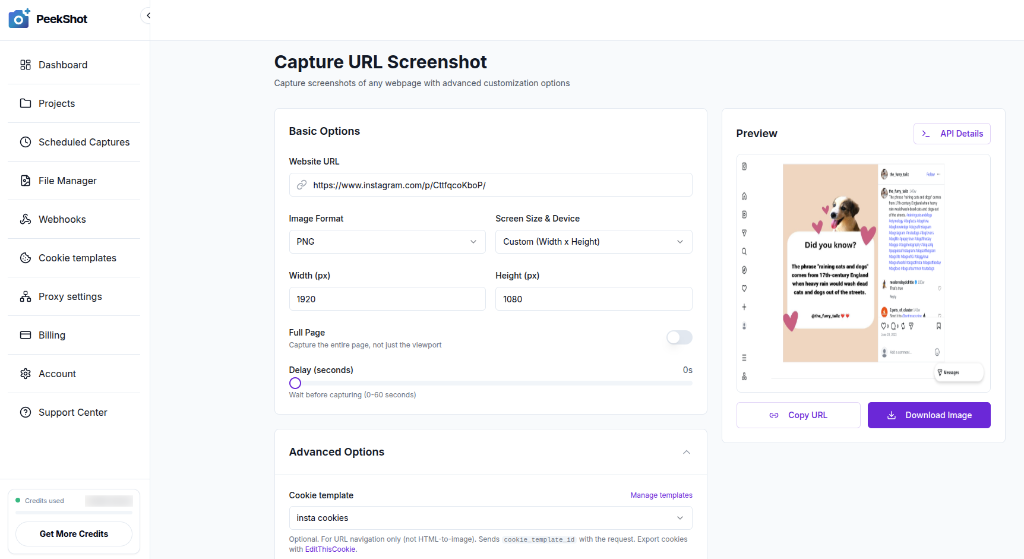
💡 Tip: Instagram is a heavy single-page application. If some elements are missing in your screenshot, increase the delay to 6,000 ms and try again. For most posts, 3–5 seconds is sufficient.
The result is a clean, fully rendered screenshot of the actual Instagram post — no login wall, no modal overlays.
Using the Screenshot API via cURL
For developers, you can trigger an authenticated screenshot with a single cURL command. Just pass your token and the cookie_template_id.
curl --location 'https://api.peekshot.com/api/v1/screenshots' \
  --header 'x-api-key: your-api-key' \
  --header 'Content-Type: application/json' \
  --data '{
      "project_id": "1",
      "url": "https://instagram.com/p/CttfqcoKboP/",
      "delay": "5",
      "cookie_template_id": YOUR_TEMPLATE_ID,
  }'
For more advanced parameters and options, check out our full API Documentation.
Works for Any Login-Protected Site
Instagram is just the beginning. PeekShot’s Cookie Templates work for any site that uses standard browser sessions:
- Social Media: Archive LinkedIn profiles, Twitter/X analytics, or Facebook group posts.
- Dashboards: Capture private Grafana, Metabase, or custom admin panels.
- SaaS Apps: Screenshot client-facing states in apps like Retool or Salesforce.
- E-commerce: Snapshot order management pages or inventory logs.
Security & Privacy
Cookie Templates in PeekShot are built with security as a first principle:
- AES encryption at rest — all cookie data is encrypted in the database; raw values are never stored in plain text
- API key isolation — a Cookie Template can only be used by requests authenticated with your own API key
- Full control — edit or delete any template at any time from the Cookie Templates page; deletion is immediate and permanent
- No sharing — templates are private to your account and are never shared with other users
⚠️ Warning: Session cookies expire periodically — Instagram typically rotates them every few weeks to months. If your screenshots start returning a login wall again, re-export your cookies from your browser and update the Cookie Template in PeekShot.
Frequently Asked Questions
Does this work with any website?
It works with any site that uses standard cookie-based authentication, which covers the vast majority of web applications — SaaS tools, social platforms, e-commerce portals, internal dashboards, and staging environments. Sites that use per-request MFA or aggressive bot fingerprinting may not be fully supported.
Do I need to be a developer to use this feature?
No. The Cookie Session feature is available directly from the PeekShot no-code dashboard. Export your cookies as JSON with the EditThisCookie (V3) Chrome extension, paste them into the dashboard, and capture screenshots with no code required. Developers can also use the API to integrate authenticated screenshots into any application or workflow.
What happens when my cookies expire?
PeekShot will capture whatever the browser sees — which will be the login wall or an error page. If this happens, log back into the site in your browser, re-export your cookies, and update the template.
Is it safe to store my session cookies in PeekShot?
Yes. PeekShot encrypts all cookie data at rest using AES encryption and isolates every Cookie Session behind your API key. No other user or Anthropic service can read your stored cookies. You retain full control to view, update, or delete sessions at any time.
How many Cookie Templates can I create?
There is currently no hard limit on the number of templates per account.
Does PeekShot support scheduled or bulk screenshots of protected pages?
Yes. Cookie Sessions work with all four PeekShot products: URL to Image (API), Scheduled Screenshots, Bulk Screenshots (CSV), and the no-code dashboard. You can schedule weekly authenticated screenshots or bulk-process a CSV of protected URLs — all using the same saved Cookie Session.
Summary
Taking authenticated screenshots of login-protected pages is now a solved, fully automatable problem with PeekShot. Here is the complete workflow in four steps:
- Export — Open the target site in your browser while logged in, then export cookies in JSON format using EditThisCookie (V3)
- Save — Create a Cookie Template in your PeekShot dashboard and paste in the cookie JSON
- Capture — Select the template on the dashboard capture form, or pass
cookie_template_idin an API request - Automate — Use the same
cookie_template_idin scheduled captures, bulk CSV jobs, or webhooks to fully automate your pipeline
The one-time setup takes less than five minutes. From that point forward, every authenticated screenshot is fully automated.
Ready to try it? Start with 100 free screenshots — no credit card required.
Questions about setting up your Cookie Template? Reach out via the PeekShot Support Center or our contact page — we’re happy to help.